

Productivity Suite Guide: Compare Free and Paid Office Tools
Ready to Build Something Great?
Book a free strategy call with our team and let's turn your idea into reality.
Share This Blog
A productivity suite is a set of apps for daily work. For example, it helps you write documents, track costs, and share files. You can also use it for school tasks.
Think about a team sending a customer quote. First, one person checks the costs. Next, another writes the offer. Finally, a manager approves it.
Now imagine each person uses a different file. One copy has an old price. Another lacks the latest change.
Shared apps keep that work in one place. As a result, people spend less time finding the right copy.
The same idea works for school projects. Students can share notes, build slides, and check each other’s work before a deadline.
What Does a Productivity Suite Include?
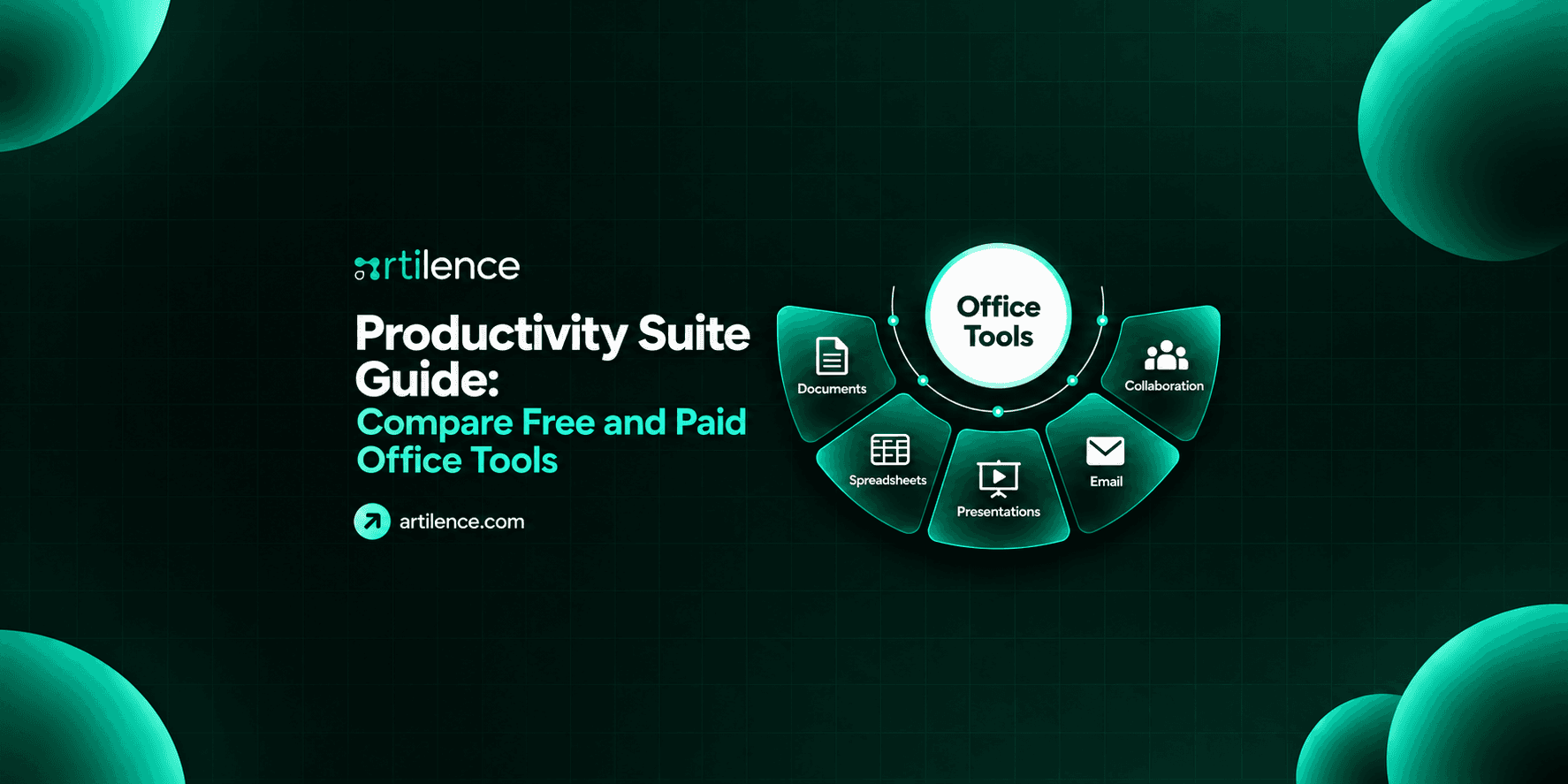
Most office productivity software includes tools for documents, spreadsheets, and slides. Some packages also offer email, calendars, calls, and file storage.
Each app handles a different part of the day. For example, a spreadsheet tracks costs, while a calendar shows when bills are due.
| App | Common task |
| Document editor | Write letters, reports, and proposals |
| Spreadsheet | Track costs, stock, and work hours |
| Slide maker | Present ideas with text and images |
| Calendar | Plan calls, classes, and due dates |
| File storage | Save work and share it with others |
| Send messages and manage replies |
However, plans differ. A package with strong writing tools may not include business email.
First, list the tasks you complete each week. Then check which apps cover those tasks.
How One Shared File Cuts Confusion
Picture a repair firm in Ohio. Its team needs to send a quote for a kitchen job.
First, an employee checks the parts list. Next, they add the prices to a shared document.
The manager spots a missing delivery fee. So, they leave a comment beside the total.
The employee adds the fee. Then the manager reviews the same file and approves it.
Useful team collaboration tools support this process. As a result, feedback stays beside the work that needs attention.
However, shared access does not replace clear roles. Someone still needs to check the price and send the quote.
Therefore, give each step an owner. This helps prevent a finished draft from sitting untouched.
Online Apps or Desktop Apps?
A cloud productivity suite gives you access to apps and files through online services.
For example, staff in Dallas and Boston can review the same report. They can work together without sending fresh copies after each edit.
Desktop apps run on your computer. In contrast, browser-based apps open through your web browser.
Some packages combine both approaches. However, offline access depends on the app and its setup.
Before choosing a cloud productivity suite, test your most important offline task.
First, prepare a sample file. Then disconnect from the internet and try to edit it.
Once you reconnect, check that the changes sync correctly. This simple test helps you plan for travel or weak internet service.
Compare Tools With Files You Already Use
Google Workspace and Microsoft 365 are two familiar examples. Both cover many everyday office tasks.
However, a familiar name does not tell you how well your files will work.
Test office productivity software with real samples. For example, use a quote, a budget, and a short slide deck.
Next, check the details:
- Do tables stay on the right page?
- Do formulas give the right totals?
- Are the fonts easy to read?
- Can coworkers open the shared file?
- Does the exported copy look correct?
Also, ask staff to try the apps without a guided demo. Their questions can reveal steps that need training.
A tool may look simple during a sales call. Yet daily use can expose missing features or extra clicks.

When Free Tools Make Sense
Free apps may be enough for homework, personal budgets, and basic reports. They can also suit someone working alone.
However, a business may need more control.
For example, you might want company email, extra storage, or a way to manage staff accounts.
Compare business productivity tools against those needs. Then check which features require payment.
Before choosing a free plan, ask:
- Can it open my usual files?
- Is there enough storage?
- Can I control who edits a document?
- Can I download my work?
- What support is available?
Also, check whether the offer is free long term or only a trial.
The goal is to avoid paying for unused features. At the same time, missing tools should not make daily work harder.
Add Up the Full Cost
A small monthly fee can become a large yearly bill.
Consider this sample, not a vendor price. A plan costs $15 per person each month.
For 12 people, that equals $180 monthly. Therefore, the yearly cost is $2,160 before taxes and extras.
You may also need money for:
- Moving old files and email.
- Teaching staff the new tools.
- Buying extra storage.
- Getting setup help.
- Keeping two systems during the move.
When comparing business productivity tools, read the billing terms. For example, a displayed monthly price may require a yearly commitment.
Also, review apps you already pay for. The new package may cover some of their tasks.
However, test each replacement before canceling anything.
Make Shared Files Easy to Find
Even good team collaboration tools become messy without clear file names.
For example, “Final New Copy 4” tells coworkers very little. “Kitchen Quote October 2026” gives them a useful clue.
Next, create folders that match your work. A service firm might separate quotes, active jobs, and finished projects.
Choose one working copy of each document. Then share that copy when you need feedback.
Also, keep private staff records away from general team folders. Check guest access before sharing customer files.
A cloud productivity suite still needs people to manage access and file ownership.
Finally, give new staff a short filing guide. Show a sample folder and a few clear file names.
Run a Trial With Five Real Tasks
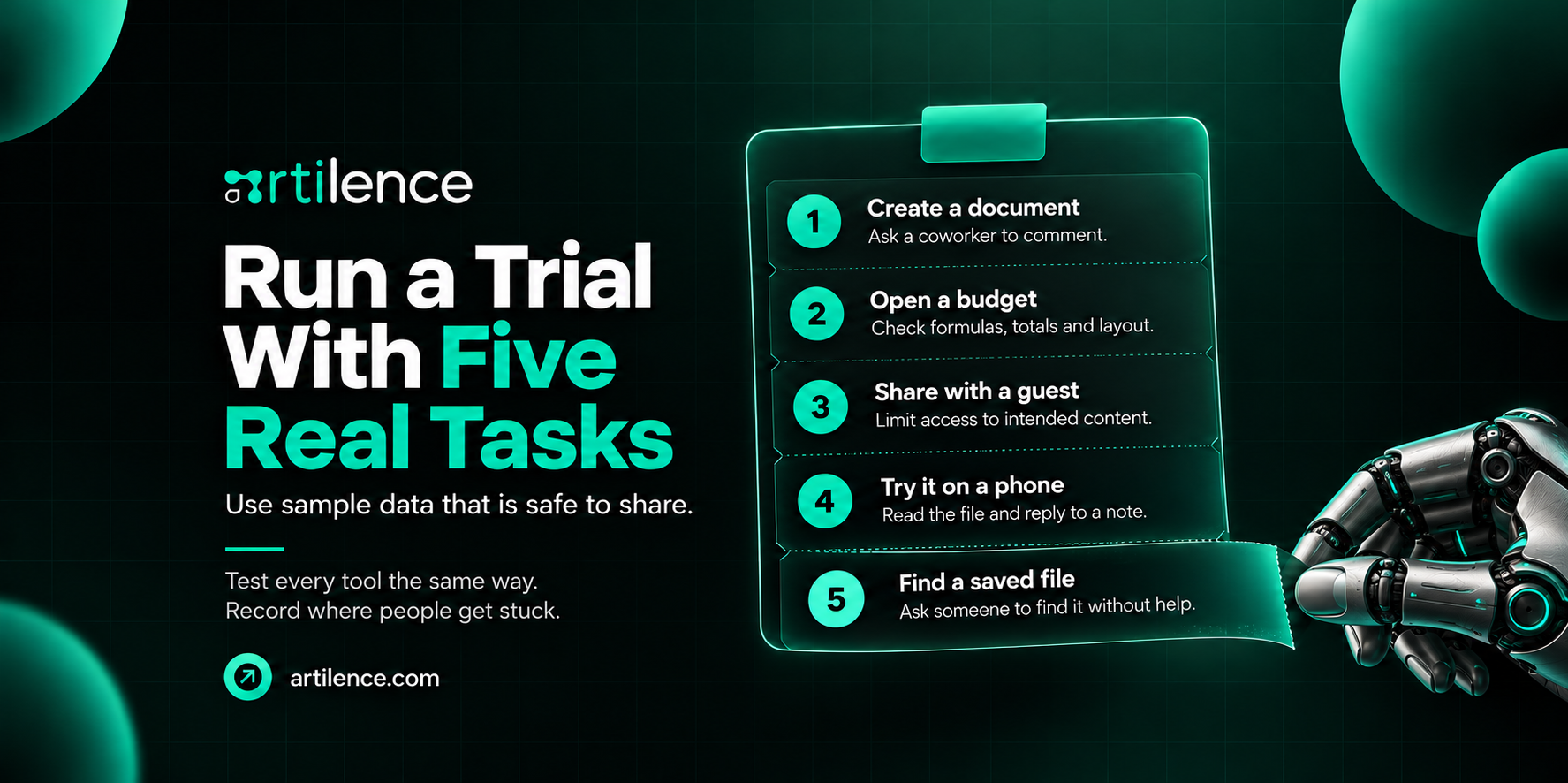
A useful trial should feel like a normal workday. However, use sample data that is safe to share.
First, create a document and ask a coworker to leave a comment.
Next, open a budget. Check the formulas, totals, and layout.
Then share a file with a guest. Confirm they can view only the intended content.
After that, open the file on a phone. Try to read it and reply to a note.
Finally, ask someone to find a saved file without help.
Use these tasks to compare office productivity software. Record where people get stuck.
Apply the same checks to all business productivity tools you test. That way, each option faces the same practical test.
Move One Small Team First
Once you choose your tools, start with a small group. For example, move the staff who handle customer quotes.
Give them a short list of normal tasks. Then ask them to record missing files, access errors, and confusing steps.
Meanwhile, keep a safe backup of the old files. Do not remove it before checking the new setup.
Also, name one person who can answer questions. Staff should know where to go when something fails.
At the end of the week, review the problems. Then fix those issues before moving more people.
This approach gives the team time to learn without changing every task at once.
How Artilence Helps Connect Daily Work
Artilence offers software development, AI, and automation services, including connections between business tools. For example, staff may copy the same form details into customer records each day. That repeated step can be worth reviewing. First, note where the data starts and where it should go. Then name the person who checks it. These details give Artilence a clear process to assess before suggesting custom work.
Ten Common Questions About Office Apps
1. What is a productivity suite?
It is a group of apps for common work tasks. For example, these apps help you write documents, track numbers, and make slides. Some packages also include email and shared storage.
2. Is productivity suite free?
Some options are free, while others charge a fee. However, free plans may limit storage or features. Check those limits before choosing a plan.
3. What are office productivity suites?
They are groups of apps used at work, school, and home. For example, they help people create reports, budgets, and slides. Their included features vary by package.
4. Which productivity suite do you use for work or school?
Start with the tools your school or employer provides. That way, sharing files may be easier. If you choose your own, compare your budget, tasks, and file needs.
5. Can these apps work without the internet?
Some support offline work. However, you may need to install an app or prepare files first. Test access before you travel or lose your connection.
6. Can office apps replace project management software?
They may cover simple task lists and schedules. However, complex projects may need a separate tool. Check how you will track owners, deadlines, and linked tasks.
7. How do these tools help remote teams?
Team collaboration tools let people review shared files from different places. For example, coworkers can leave comments beside a draft. Clear roles still help prevent missed tasks.
8. Will my old files look the same?
Some files may change when opened in another app. For example, fonts, charts, or tables can shift. Therefore, test important files before moving everything.
9. What should a small business check before buying?
First, review the apps, storage, support, and account controls. Then check the full cost and billing terms. Finally, test normal tasks with your staff.
10. How can I switch without losing work?
First, back up your files. Next, move a small batch and check the contents and access settings. Then move the rest once the test works.
Artilence Newsletter
Don't worry your email is secure with us, We will use it to share the latest updates straight to your inbox!
By subscribing, you agree to our Privacy Policy.
Ready to Build Something Great?
Book a free strategy call with our team and let's turn your idea into reality.
Related Insights



AI is our language, we speak it fluently. Let's innovate together.




Services
Artilence Newsletter
Don't worry your email is secure with us, We will use to share latest updates straight to your inbox!
By subscribing, you agree to our Privacy Policy.


